Table of Contents
- Module 1 - Navigating the System
- Module 2 - Users and Permissions
- Module 3 - Package and Software Management
- Module 4 - Filesystems
- Module 5 - Process Management
- Module 6 - Operating Systems in Practice
Module 1 - Navigating the System
Command-line interpreter in Linux - shell Language interact with - Bash
# Manual entry for commands
Get-Help ls -Full

# Shows system and hidden files
ls -Force C:\
Absolute path: One that starts from the main directory.
Relative path: The path from your current directory. cd ..
mkdir my` cool` folder # mkdir "my cool folder"

# Bash
mkdir my\ cool\ folder
Check powershell history with Ctrl + R
PS C:\Users\miniMinn> Stop-Service sshd
bck-i-search: ssh_Wildcard: A character that’s used to help select files based on a certain pattern.
rm important_text.txt -Force
rm important_text.txt -Recurse
cat - concatenate
# Stops showing contents once the terminal screen is full | scrollable
more large_text.txt

cat lists.txt -Head 10 # first ten lines
cat lists.txt -Tail 10 # last ten lines
$ less large_text.txt # similar to `more` on WindowsHotkeys: g - beginning of content, G end of content
Start notepad '.\New Text.txt'Alias of commands (e.g. ls how does actually run)
PS C:\Users\miniMinn\Windows_Lab> Get-Alias ls
CommandType     Name                                               Version    Source
-----------     ----                                               -------    ----
Alias           ls -> Get-ChildItem
Searching contents in files, or command sls
Select-Strings New *.txtSearching within directories
ls ./ -Recurse -Filter *.exe # search only for .exe in current directory$ grep text *.txtIO, and pipline
echo new_word > text.txt

# Pipeline
cat words.txt | sls ht
> overrides, >> append
1: stdout - the output <
2: stderr - the error 2>
# Redirect error message
rm secured.txt 2> errors.txt

rm secrued.txt 2> $null
$ ls /fake/dir 2>/dev/nullModule 2 - Users and Permissions
Windows Domain - A network of computers, users, files, … that are added to a central database. User Account Control (UAC) - A feature in Windows that prevents unauthorized changes to a system.
# Get users list info
Get-LocalUser

# Get groups info
Get-LocalGroup

# Get memebers info
Get-LocalGroupMember <Group_Name>
Linux | Bash
su in bash means “substitute user” or “switch user” to temporarily become another user. Default is root.
$ sudo su - # Change full environment/path | login shell switch
$ sudo su   # Retains current environment/path

# View groups info
$ cat /etc/group

# View users info
$ cat /etc/passwd
Groups info viewing:
sudo:x:27:miniminn- Group name, password (hashed), group ID, and list of users Users info viewing:sudo:x:0:0:root:/root:/bin/bash- Username, password (hashed, stored in different file), user ID/UID (sudo default is0)
Change user password Bash, it’s securely scrambled, then stored in a special privileged file - /etc/shadow
$ passwd <user_name> # Stored in /etc/shadowForcing user password to change on next logon:
# Immediately expire a user's password
# So it made them set a new password next time they login
$ sudo passwd -e <user_name>
Adding/Deleting user account:
# Creating
$ sudo useradd <user_name>

# Deleting
$ sudo userdel <user_name>
File Permissions
drwxr-xr-x miniminn miniminn 4.0 KB Thur Sep 26 11:04:46 2025 My_Directoryd- file type (directory, regular file, …)rwxr-x-r-x- Permissions of Owner, Group, and Otherminiminn miniminn- User, Group
Modifying Permissions
The owner - u
The group the file belongs to - g
Other users - o
# Giving executable permission to the onwer
$ chmod u+x <file_path>

# Removing permission
$ chmod u-x <file_path>

# Other permissions | execute, read, write
$ chmod u+rwx <file_path>
The numerical equivalent of rwx:
4for read2for write1for execute
# 7 for Owner, 5 for our Group, and 4 for all other user
$ chmod 754 <file_path>
Changing the owner of the file:
$ sudo chown <user_name> <file_path>

# Verify
$ ls -l <file_path>
Chaning the Group of file belongs to:
$ sudo chgrp <group_name> <file_path>

# Verify
$ ls -l <file_path>
SetUID, SetGID, Sticky Bit
SetUID - Enable files to be run by the permissions of the owner of a file, that’s why you can run passwd by root permission to change your password:
# We can run `passwd` as regular user, but it's owned by root
$ ls -ld /etc/shadow
-rw------- root root ... /etc/shadow

# Verify
$ ls -ld /bin/passwd
-rwsr-xr-x root root ... /bin/passwd
In -rwsr-xr-x, s stands for SetUID
When
sis substituted, it allows to run the file with the permissions of the owner of the file.
# Which runs as TTY (group) as you see here
$ ls -ld /usr/bin/wall
.rwxr-sr-x root tty ... /usr/bin/wall
The numerical equivalent of special permissions:
4ors- SUID - Run with owner’s privileges.2org- GUID - Run with group’s privileges.1ort- Sticky Bit - Only the file owner can delete or modify files in a directory.
Enabling SUID - Run with owner’s privileges:
# -rwsr-xr-x
$ chmod 4755 <file_path>
Enabling GUID - Run with group’s privileges:
# ... miniminn linux_lab ...
$ chmod 2755 <file_path>
Enabling Sticky Bit - Makes anyone can write, but can’t delete anything:
# -rwxr-xr-t
$ chmod 1
$ ls /usr/bin/passwd -l
.rwsr-xr-x root root ... /usr/bin/passwd
Windows | Powershell
Net - A legacy command-line utility in Windows used for managing network resources, users, groups, and services.
Change user password on Powershell:
net user <user_name> *
Type a password for the user: ****
Add user:
net user <user_name> * /add
# Type password

# Confirm account created
Get-LocalUser

# Asking to change password in next login
net user <user_name> /logonpasswordchg:yes

# Add new user | change password in next login
net user <user_name> "password" /add /logonpasswordchg:yes
Deleting user:
net user <user_name> /del # Or
Remove-LocalUser <user_name>
File Permissions
File and directory permissions are assigned using ACLs (Access Control List). For now, Discretionary ACL or DACLs. Windows files and folders can also have System ACLs or SACLs assigned to them.
Command-line utility - ICACLs or Improved Change ACLs
> ICACLs ~\Desktop
C:\Users\miniMinn\Desktop\ NT AUTHORITY\SYSTEM:(I)(OI)(CI)(F)
                           BUILTIN\Administrators:(I)(OI)(CI)(F)
                           DESKTOP-5TOOLJF\miniMinn:(I)(OI)(CI)(F)
NTFS permissions can be inherited.
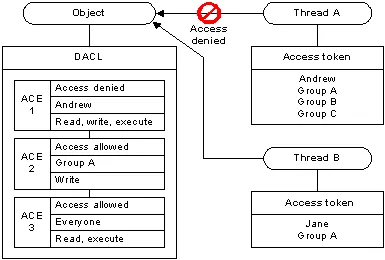
Modifying Permissions
Adding permissions or adding users to a file/folder through GUI: Right click > Properties > Security > Add > …
Through Powershell:
# Letting everyone see file
icacls <path_file> /grant "Everyone:(OI)(CI)(R)"

# Letting only Authenticated User to see | Authenticated Group
icacls <path_file> /grant "Authenticated Users:(OI)(CI)(R)"

# Removing
icacls <path_file> /remove "Everyone"

# Verify permissions
icacls <path_file>
Special Permissions
WD: Create Files/Write Data
AD: Create Folders/Append Data
S: Synchronize
Module 3 - Package and Software Management
Linux | Bash
# Installing
$ sudo dpkg -i program.deb

# Uninstalling | Remove
$ sudo dpkg -r program

# Verifying if program is installed
$ dpkg -l | grep <name>
Archive | Tar, Gzip
| Flag | Meaning |
|---|---|
-c | Create: Creates a new archive. |
-x | Extract: Extracts files from an archive. |
-t | List: Lists the contents of an archive. |
-f | File: Specifies the name of the archive file. |
-v | Verbose: Provides detailed output during the operation. |
-z | Gzip: Compresses or decompresses using Gzip. |
-j | Bzip2: Compresses or decompresses using Bzip2. |
-C | Change Directory: Changes to a specified directory before performing an action. |
Creating a compressed archive:
$ tar -cvzf my_archive.tar.gz "my_directory"Extracting to a specific directory:
$ tar -xvf my_archive.tar -C "/destination/path"Package Manager | APT
- The repository source file in Ubuntu -
/etc/apt/sources.listsudo apt update- updates the source lists for latest software.sudo apt upgrade- installs the latest software from latest updated source.
- Arch Linux -
/etc/pacman.d/mirrorlist
Devices and Drivers
/dev/sda- First SCSI drive/dev/sr0- First optical disk drive/dev/usb- USB device/dev/usbhid- USB mouse/dev/usb/lp0- USB printer/dev/null- discard
Some of the Linux device categories include:
- Block devices: Devices that can hold data, such as hard drives, USB drives, and filesystems.
- Character devices: Devices that input or output data one character at a time, such as keyboards, monitors, and printers.
- Pipe devices: Similar to character devices. However, pipe devices send output to a process running on the Linux machine instead of a monitor or printer.
- Socket devices: Similar to pipe devices. However, socket devices help multiple processes communicate with each other.
# Verifying currnet version of OS
$ uname -r

# Full OS update | Debian
$ sudo apt update && sudo apt full-upgrade
Windows | PowerShell
- Executable file (.exe) - Contain instructions for a computer to execute when they’re run.
- Microsoft Install Packge (.msi) - Guides a program called the Windows Installer in the installation, maintenance, and removal of programs on the Windows OS.
\path\to\setup.exe/log:[path to log file]: Enables verbose logging (more detailed information recorded in the log file) for the update installation./lang:lcid: Sets the user interface to the specified locale when multiple locales are available in the package./quiet: Runs the package in silent mode./passive: Runs the update without any interaction from the user./norestart: Prevents prompting of the user when a restart of the computer is needed./forcerestart: Forces a restart of the computer as soon as the update is finished.
Package Archives - The core or source software files that are compressed into one file. WinRAR, .tar, 7zip
Compress-Archive -Path <file_path> <output_path>Dynamic Link Library (DLL)
Contains reusable code - to help conserve disk space and use RAM efficiently. App only uses when it needs - eliminating the need to update the entire library. DLL updates are installed once for use by any number of apps.
Common DLLs used by Windows:
- .drv files - Devices drivers manage the operation of physical devices (e.g. printers)
- .ocx files - Active X controls provide controls (like the program object for selecting a date from a calendar).
- .cpl files - Control panel files manage each of the functions found in the Windows Control Panel
Package Manager
# Finding package
Find-Package sysinternals -IncludeDependencies

# Installing package
Install-Package -Name sysinternals

# Verifying if it is installed
Get-Package -name sysinternals

# Uninstalling package
Uninstall-Package -name sysinternals
Module 4 - Filesystems
Two main partition table schemes:
- Master Boot Record (MBR) - Mostly in Windows, Old Standard
- 2 TB max volume size
- (only 4) Primary partitions
- GUID Partition Table (GPT) - New standard, required by UEFI
- 2 TB or greater volume size
- One type of partition
- Unlimited partitions
Linux | Bash
parted - supports GPT and MBR:
# List connected disks
$ sudo parted -l

# Manage specific disk
$ sudo parted /dev/sdb  # e.g. USB flash drive

# See disk again
$ (parted) print

# Making the label GPT
$ (parted) mklabel gpt

# Partition
$ (parted) mkpart primary ext4 1MiB 5GiB

# Format partition
$ sudo mkfs -t ext4 /dev/sdb1
Mounting and Unmounting a Filesystem in Linux
File System Table fstab: A Linux configuration table to simplify mounting and unmounting file systems in Linux.
| Filesystem | Mount Point | Type | Options | Dump | Pass |
|---|---|---|---|---|---|
/dev/sda1 | / | ext3 | nouser | 0 | 1 |
/dev/sda2 | swap | swap | defaults | 0 | 0 |
/dev/hda1 | /mnt/shared | ntfs | rw, noexec | 0 | 2 |
| The Universally Unique Identifier (UUID) | Directory location of mount point. | The filesystem types e.g. ext2, ext3, ext4, JFS, VFAT, … | Restriction options e.g. nouser, noexec, auto, ro, sync | Turn on backup operations or off. | Order which should be check by fsck utility |
$ lsblk
NAME   MAJ:MIN RM   SIZE RO TYPE MOUNTPOINTS
sda      8:0    0 476.9G  0 disk
├─sda1   8:1    0   512M  0 part /boot
└─sda2   8:2    0 476.4G  0 part /
zram0 253:0 0 3.8G 0 disk [SWAP]- MAJ:MIN - 1 = RAM, 3 = IDE hard drive, 8 = SCSI hard drive, 9 = RAID metadisk. MIN is ID number used by the device driver for the major number type (sub-partitions).
- RM -
0not removable orremovable - SIZE - storage avaiable
- RO -
0read-write,1read-only - Type -
diskhard drive,partdisk partition - MOUNTPOINT - location where the device is mounted. Blank entry means not mounted.
Swap
$ sudo parted /dev/sdb
$ (parted) mkpart primary linux-swap 5GiB 100%
$ (parted) print

# Activiation
$ sudo mkswap /dev/sdb2 # Enter path here
$ sudo swapon /dev/sdb2
Files
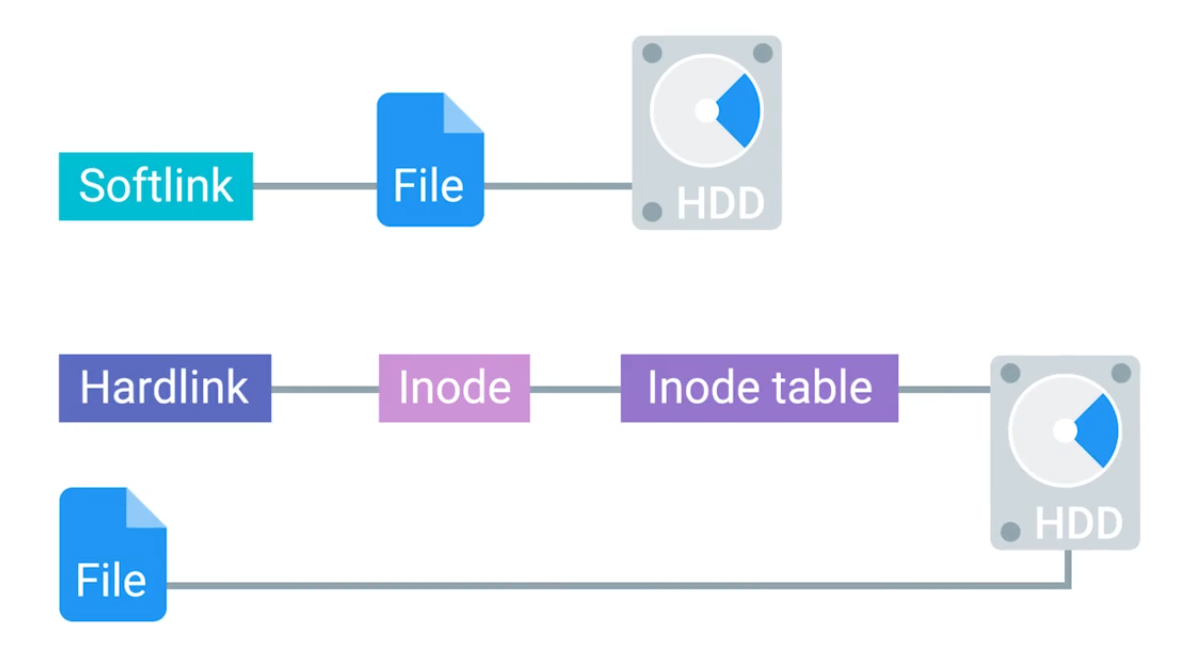
# Third files indicates the amount of hard links the file has - 0 means the file is completely removed from the computer
$ ls -l file
-rw-rw-r-- 1 miniminn cindy 0 Oct 5 16:40 file

# Creating softlink
$ ln -s file file_softlink

# Creating hardlink
$ ln file file_hardlink
# Shows how much free space left
$ dfFilesystem Repair
fsck (Filesystem Check) - Auto repairing the disk
$ sudo fsck /dev/sdbEnabling fsck on boot:
# Debian and Ubuntu
- Edit the rcS file: $ sudo vi /etc/default/rcS
- FSCKFIX=yes

# CentOS
- Create or edit a file: $ sudo vi /etc/sysconfig/autofsck
- Add following line: AUTOFSCK_DEF_CHECK=yes
Windows | PowerShell
- Cluster (allocation unit size): The minimum amount of space a file can take up in a volume or drive.
- Volume: A single accessible storage area with a single file system; this can be across a single disk or multiple.
- Partition: A logical division of a hard disk that can create unique spaces on a single drive. Generally used for allowing multiple operating systems.
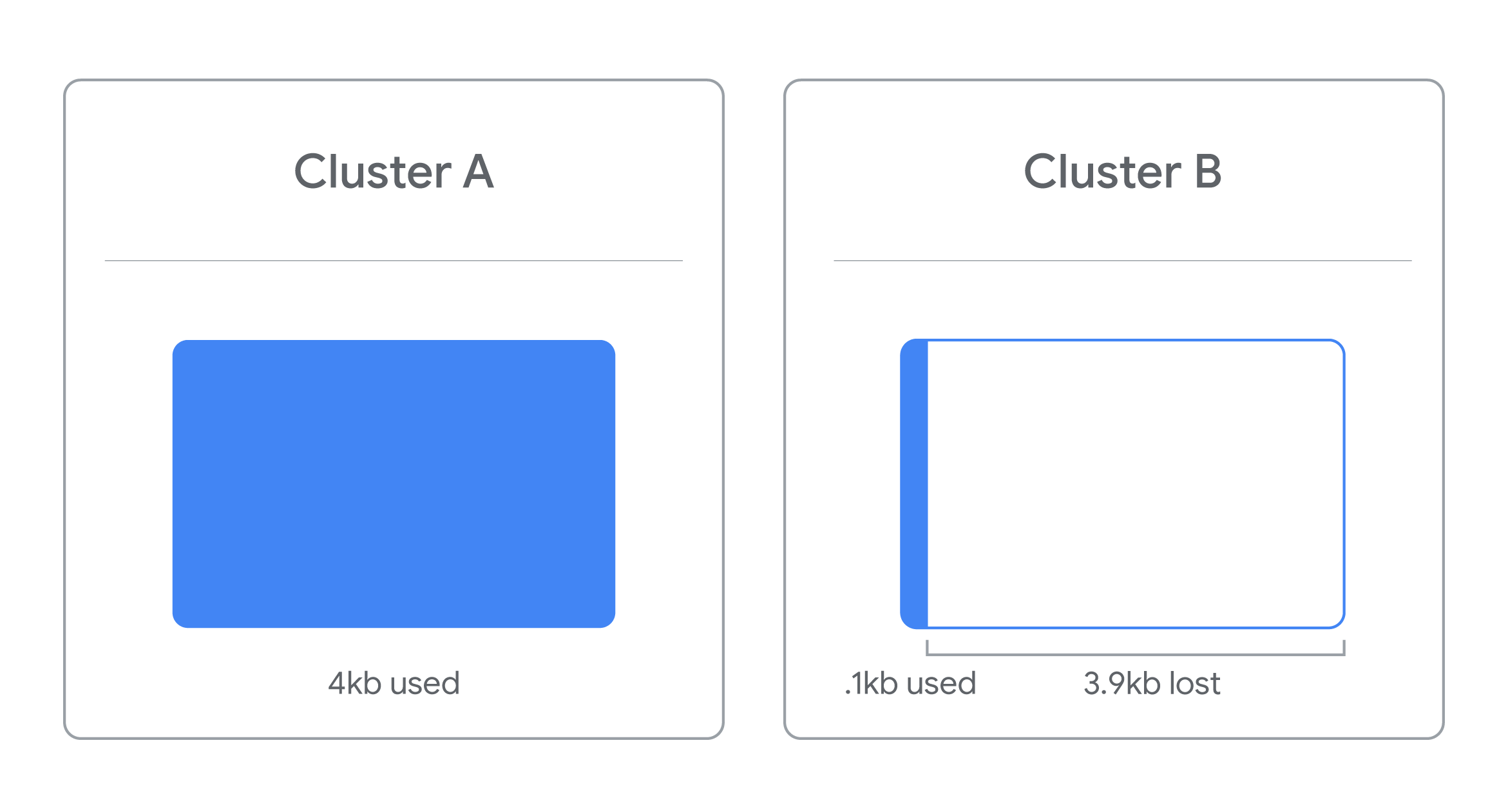 *Example: If the cluster size is 4kb and the file you’re trying to store is 4.1kb, that file will take up 2 clusters - losing 3.9 kb of space for use on a single file.*
Diskpart # opens up new window

# List current disks
DISKPART> list disk

# Identify and select specific disk
DISKPART> select disk <disk_number>

# Wiping disk
DISKPART> clean

# Creates blank partition
DISKPART> create partition primary

# Select freshly created partition | which is 1
DISKPART> select partition 1

# Making it active
DISKPART> active

# Format in NTFS filesystem
DISKPART> format FS=NTFS label=My-USB quick
Swap
Virtual Memory - works with paging mechinasm on hard drive. See paging details: Control Panel > System > Advanced system settings > System properties > Advaced tab > Performance - Settings > Advaced tab.
Files
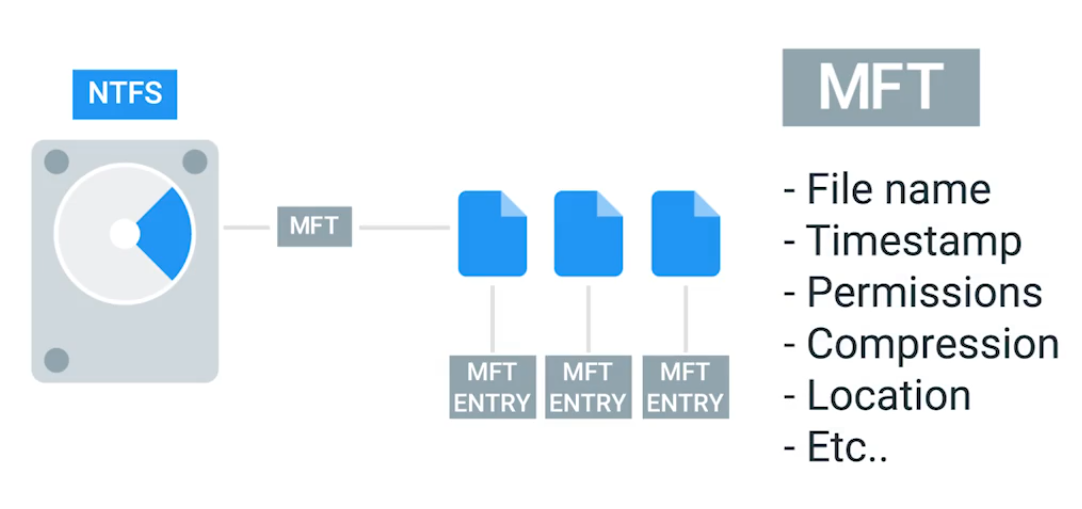
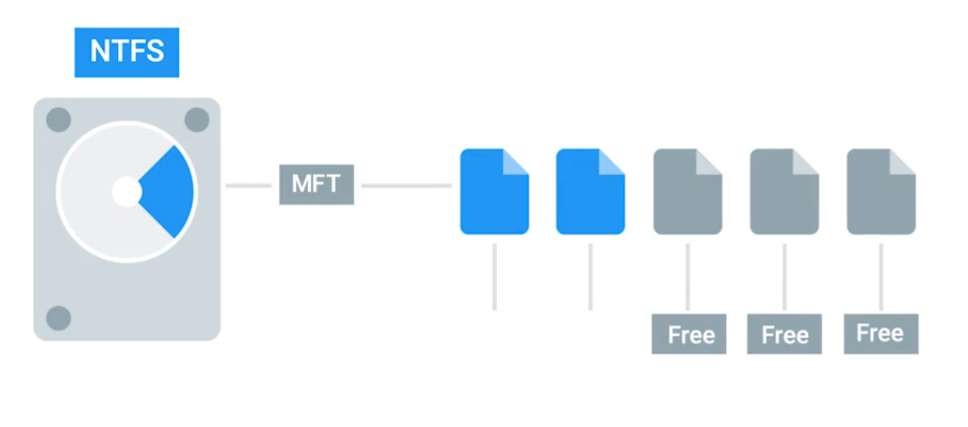
A component of NTFS is the Master File Table (MFT) - serves as the central data structure for storing metadata about all files and directories on the volume.
 |  |
|---|
Meaning the OSs treats symbolic link just like the original files:
# Created ~\Desktop\Links\file_1.txt and file_1_shortcut.lnk

notepad.exe file_1_shortcut.lnk # content outputs aren't readable

# Creating symbolic link
mklink file_1_symlink file_1.txt # readable
Hardlinks points out the file record number and not the file name, so the original file name can be changed and the link will still works:
# Creating hardlink
mklink /H file_1_hardlink file_1.txt
Filesystem Repair
Data Buffer - A region of RAM that’s used to temporarily store data while it’s being moved around. (e.g. Essentail to eject the USB drives before unplugging). Else, causes Data corruption.
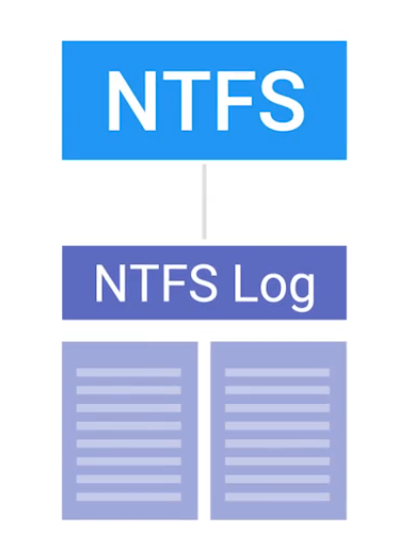
Journaling - Logging these changes NTFS creates a history of actions it’s taken. The recovery initiation will use this logs.
# Checking disk to fix any problems with flag /F
chkdsk /F <drive> # Run as administrator
Module 5 - Process Management
Linux | Bash
# Listing current processes
$ tasklist
Reading Process Information
# Getting snapshot of current processes
$ ps -x
    PID TTY      STAT   TIME COMMAND
    650 ?        Ss     0:07 /usr/lib/systemd/systemd --user
    652 ?        S      0:00 (sd-pam)
660 ? Ss 0:00 /usr/bin/dbus-broker-launch --scope user- PID - Process ID.
- TTY - Terminal associated with the process.
- STAT - R: running, T: stopped, S: interruptible sleep.
- TIME - Total CPU time the process has taken up.
# Getting snapshot of current process -all processes -full details
$ ps -ef
UID          PID    PPID  C STIME TTY          TIME CMD
root           1       0  0 11:17 ?        00:01:06 /sbin/init
root 2 0 0 11:17 ? 00:00:00 [kthreadd]- UID - User ID who runs the command.
- PPID - Parent ID which launches the process.
- C - Children process of parent.
Another way view current processes running:
# Remember that everything is a file on Linux
$ ls -l /proc

# More detail
$ cat /proc/<PID>/status
Name:	gdbus
Umask:	0022
State:	S (sleeping)
Tgid:	1080
Ngid:	0
Pid:	1101
...
Managing Processes
# Hey there process, I don't need you complete so could you stop what you're doing? | cleanup | SIGTERM signal
kill <PID>

# Hey, it's time to die mr. process! | no cleanup | SIGKILL signal
kill -KILL <PID>

# suspending | SIGSTP signal
kill -TSTP <PID>

# resuming | SIGCONT signal
kill -CONT <PID>
Resource Monitoring
# See top CPU used processes
$ top

# Seeing OS's uptime | load average
$ uptime
16:02:24 up 1 day,  4:44,  1 user,  load average: 1.34, 1.36, 1.19

# See current processes -all -userlist -root's
$ ps -aux
Windows | Powershell
# Getting PID of specific process
Get-Process

# Getting top 3 most CPU used processes
Get-Process | Sort CPU -descending | Select -first 3 -Property ID,ProcessName,CPU
Id ProcessName        CPU
-- -----------        ---
2732 MsMpEng     295.265625
1500 svchost        264.125
4540 explorer      72.78125
Terminating process in command-line:
taskkill /pid 5868 /pid 1241 /pid 1253Process Explorer - A utility Mircosoft created to let IT Support Specialists, system administrators and other users look at running processes.
Module 6 - Operating Systems in Practice
Linux | Bash
File Transfer
Secure Copy Protocol (SCP): A utility for securely transferring files between a local host and a remote host, or between two remote hosts, uses SSH protocol for encryption and authentication.
$ scp /path/file hostname@ipaddress:/path/directoryLinux Logs
All logs are stored at /var/log:
/var/log/auth.log- Authentication related logs./var/log/kern.log- Kernel message logs./var/log/dmesg- System startup message logs. (e.g. To check boot errors)/var/log/syslog- Stores events, but no off events, to contain comprehensive info.The commonly seen timestamp formats uses Unix Epoch time.
Logrotate - A utility to automate the management of log files on Linux systems, simplifying the process of rotating, compressing, removing, and mailing log files, typically run daily via a cron job or systemd timer.
/etc/logrotate.conffor global settings and/etc/logrotate.d/for application-specific configurations.
Working with Logs
Find specific word or what word could relate to the problem:
$ lesss /var/log/syslog | grep errorAnother way, checking the logs in real time.
$ tail -f /var/log/syslogIn Arch Linux, the default logging system is systemd-journald, which stores logs in the /var/log/journal/.
OSs Deployment Methods
dd - A powerful utility for low-level data copying and conversion, primarily used for tasks like disk cloning, creating disk images, backing up partitions, and writing ISO files to USB drives.
Searching for large files:
# Search size of all, sort, top 5
$ sudo du -a ./path | sort -n -r | head -n 5
Windows | Powershell
Mirosoft Terminal Services mstsc.exe - used to connect and create RDP connections to remote computers.
Enable Remote Desktop in Settings > Remote desktop and connect it with using
mstsc.exe.
Common SSH Clients:
- PuTTY: Windows, protocols: SCP, SSH, Telnet, rlogin, and raw socket connection.
- SecureCRT: Cross-platform, protocols: SSH1, SSH2, Telnet, and Telnet/SSL.
- SmarTTY: With a multi-tabbed interface to allow multiple simultaneous connections, protocols: SSH and SCP
- mRemoteNG: Remote desktop system with a tabbed interface for multiple simultaneous connetions, protocols: RDP, VNC, SSH, Telnet, HTTP/HTTPS, rlogin, Raw Socket Connections, Powershell remoting.
- MobaXterm: Remote access system, Unix and Linux, Windows, protocols: SSH, X11, RDP, VNC.
The PuTTY package comes with a tool called the PuTTY Secure Copy Client, or pscp.exe.
pscp.exe C:\Users\user_name\Desktop\file.txt username@104.131.122.215:Giving full permissions everyone on the network to a folder ShareMe (requires Administrative privillages):
net share ShareMe=C:\Users\user_name\Desktop\ShareMe /grant:everyone,fullThe Windows Event Viewer
Execute the software with eventvmr.msc.
OS Deployment Methods
- NinjaOne Backup - Cloud-based cloning, backup, and data recovery service, for managed service providers (MSPs) and remote workplaces.
- Acronis Cyber Protect Home Office - Desktop and mobile device cloning, works with Windows, Apple, and Android.
- Barracuda Intronis Backup - Cloud-based cloning and backup service, can integrate with professional services automation (PSA) and remote monitoring and management (RMM) packages.
- ManageEngine OS Deployer - Software for replications, migrations, standardizing system configs, security, and more. Creates images of Windows, MacOS, and Linux OSs with all drivers, system configs, and user profiles.
- EaseUS Todo Backup - Free Windows-compatible software for differential, incremental, and full backups, as well as disaster recovery, supports copying from NAS, RAID, and USB drives.
Windows Troubleshooting
- Is the problem unique to one computer or all computers on the network?
- Does the problem affect a single user or all users?
- Is the problem related to a particular application? Is that application up-to-date?